
Maintaining the operational integrity of a sophisticated wearable device requires a consistent commitment to installing software updates that introduce essential security patches and functional enhancements. As the relationship between the Apple Watch and the paired iPhone continues to evolve, the necessity for a stable and synchronized software environment becomes increasingly paramount for every user. These digital improvements often provide more than just cosmetic changes; they frequently address underlying system vulnerabilities that could compromise sensitive biometric data or personal information stored on the hardware. Furthermore, many modern features, such as advanced health monitoring and refined haptic feedback systems, remain locked or inefficient until the latest firmware is successfully deployed. Navigating the update process ensures that the hardware performs at peak efficiency, extending the longevity of the battery while providing a seamless user experience across the entire ecosystem of interconnected devices.
1. Preparing the Device: A Pre-update Checklist
Success in modern software deployment begins with verifying that the specific hardware model remains within the supported lifecycle defined by current technology standards. For the current cycle, it is vital to confirm that the Apple Watch model supports the latest release; for instance, watchOS 26 requires a Series 6 or newer, whereas the upcoming watchOS 27 will necessitate at least a Series 9 to function. Simultaneously, the paired iPhone serves as the primary gateway for many system functions and must be running the most recent version of iOS to facilitate a smooth handshake between the two platforms. This synchronization prevents version mismatch errors that often lead to failed installations or persistent connectivity drops during the data transfer phase. Checking for these updates in the iPhone settings menu before attempting to modify the watch firmware is a critical first step that many users overlook, potentially resulting in unnecessary troubleshooting later in the process.
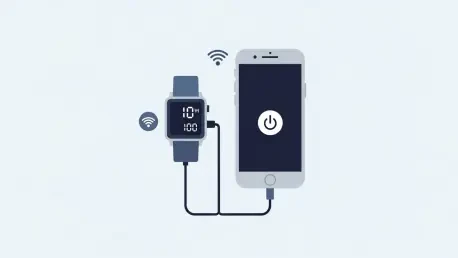
Environmental factors such as power stability and network reliability play a decisive role in the successful completion of a firmware overhaul for any smart wearable. To avoid a catastrophic system failure during the installation phase, the Apple Watch must be placed on its magnetic charger and should ideally maintain a charge of at least fifty percent throughout the entire duration. A stable Wi-Fi connection on the paired iPhone is equally indispensable, as cellular data can be inconsistent and may lead to corrupted download files that fail the verification process. Maintaining a short physical distance between the iPhone and the Apple Watch ensures that the local wireless communication remains strong and uninterrupted during the transfer of large update packages. These preparatory measures create a controlled environment where the risk of software corruption is significantly minimized, allowing the installation to proceed without the threat of the device becoming unresponsive due to power loss.
2. Updating via iPhone: Utilizing the Primary Management Application
The most reliable method for managing wearable software involves using the dedicated Watch application on the paired iPhone, which provides a comprehensive interface for system management. Upon launching the application, navigation to the My Watch tab reveals a suite of configuration options that govern the behavior and health of the connected device. Within the General submenu, the Software Update section acts as the primary hub for detecting and initiating any available firmware enhancements provided by the manufacturer. If a new version is detected, the system may request the device passcode to authenticate the user and authorize the download of the necessary files to the iPhone local storage. This authentication layer ensures that system-level changes are only executed by authorized individuals, protecting the device from unauthorized software modifications. Once the download commences, the iPhone prepares the installation package specifically for the hardware configuration of the paired Apple Watch.
After the iPhone completes the download and initial preparation of the update file, the transfer to the wearable device begins over a secured local connection. During this phase, a progress indicator or status wheel typically appears on the watch face, signaling that the device is actively rewriting its system partitions with the new software. It is imperative that the Apple Watch remains connected to its charger during this entire sequence, even if the progress bar appears to be stagnant for several minutes at a time. Removing the device from its power source or moving the paired iPhone out of range can lead to a fragmented installation, which might require a full factory reset to resolve. The installation concludes when the watch restarts and returns to the standard watch face, indicating that the new operating system is fully operational and ready for use. Patience is key during these final stages, as the internal system reorganization often takes longer than the initial download might suggest.
3. Streamlining the Process: Updating Directly on the Watch
Recent advancements in the watchOS architecture have granted the wearable device a degree of independence by allowing direct software installations without constant phone proximity. To utilize this feature, the user must first ensure that the Apple Watch is connected directly to a known and stable Wi-Fi network rather than relying solely on the Bluetooth bridge to the iPhone. Accessing the Settings application directly from the watch face provides a localized menu where system-level configurations can be adjusted without reaching for a secondary device. Within the General category of the settings menu, a dedicated Software Update option allows the hardware to poll the manufacturer servers for the latest available firmware versions. This method is particularly advantageous for users who may have their iPhone charging in another room or who prefer to manage their wearable hardware as a standalone unit. Ensuring the watch has a direct path to the internet speeds up the data acquisition phase significantly, making the overall process more efficient.
When a software update is successfully located through the on-device settings menu, the watch provides clear prompts to guide the user through the subsequent installation steps. Selecting the install option triggers the download of the update package directly to the internal storage of the Apple Watch, bypassing the need for an intermediary transfer from the iPhone. The system will typically display the terms and conditions that must be accepted before the installation can proceed into the final execution phase. It remains vital to keep the device on its charger during this direct update process to prevent a power-related shutdown that could disrupt the flashing of the new operating system. On-screen prompts may also appear asking the user to confirm the installation if the battery level is borderline, serving as a final safeguard against potential data loss. Once the process is initiated, the watch handles the unpacking and integration of the software, eventually rebooting to complete the transition and activate the newest features.
4. Resolving Conflicts and Future-proofing Your Experience
Despite the streamlined nature of modern operating systems, technical glitches can occasionally stall the update process or cause the installation to fail repeatedly. In such instances, the first course of action involves performing a standard reboot of the Apple Watch by holding the side button and selecting the power off option. Simultaneously, power cycling the paired iPhone can refresh the network handshakes and clear any temporary software conflicts that might be hindering the communication between the two devices. After both units have been restarted, returning to the update menu often reveals that the previous blockage has been cleared, allowing the download to resume from where it stopped. If the problem persists, deleting the update cache from the iPhone via the Usage menu in the Watch app can force a fresh, uncorrupted download. This basic troubleshooting step addresses the majority of minor software hangs that occur due to background processes competing for the limited system resources available on the device.
The systematic approach to software maintenance ensured that the Apple Watch remained a secure and high-performing component of the modern digital lifestyle throughout the latest cycle. By adhering to the established protocols for preparation and installation, users successfully mitigated the risks associated with firmware corruption and system instability. The transition to the latest software versions allowed for the integration of advanced health tracking and communication features that defined the wearable experience from 2026 to 2028. Actionable steps taken during this period, such as maintaining hardware compatibility and optimizing network environments, proved essential for long-term device health. Future considerations focused on even greater device independence, as the shift toward standalone updates simplified the user journey significantly. Consistent attention to these updates provided a robust foundation for the continued evolution of wearable technology, ensuring that every hardware iteration reached its full potential for the user.